Photo Make.ai
Documentation
Back
  • Getting Started with Photo Make - AI Image Generator & Editor
    • Account Setup & Management - Photo Make Guide
    • Creating Your First AI Image - Step-by-Step Tutorial
    • Understanding Text-to-Image vs Image Editing Modes
  • AI Image Generation Overview - How It Works
    • AI Image Styles & Examples - Visual Guide
    • Prompt Writing Tips - How to Write Effective AI Image Prompts
    • Prompt Enhancer Tool - AI-Powered Prompt Optimization
    • Generation Settings & Parameters - Image Output Options
  • AI Image Editing Overview - Transform Photos with Text Prompts
    • Common Image Editing Tasks - Step-by-Step Guides
    • Dual Image Editing - Combining Two Images with AI
    • URL vs File Upload - Choosing the Right Input Method
    • AI Image Editing Examples - Use Cases & Creative Ideas
    • Image Editing Workflow - Complete Process Guide
  • AI Image Detector - Verify Image Authenticity
  • Using the Prompt Gallery - Browse and Apply Pre-Made Prompts
    • Prompt Categories - Overview and Guide
    • Premium Prompts - Advanced Prompt Library Access
  • Image History & Gallery - Managing Your Generated Images
    • Saving and Exporting Images - Download and Share Your Creations
    • Image Management Tips - Best Practices for Organizing Your Images
  • Subscription Plans & Pricing - Choose Your Plan
    • Subscription Benefits - What You Get with Premium Access
    • Billing FAQ - Common Questions About Subscriptions
  • Best Practices for AI Image Generation - Tips for Better Results
    • Advanced Techniques - Professional AI Image Generation
    • Troubleshooting - Common Issues and Solutions
  • Technical Specifications - System Requirements & Details
    • Frequently Asked Questions - Comprehensive FAQ

Account Setup & Management - Photo Make Guide

Complete guide to setting up and managing your Photo Make account using Google authentication.

Account Setup & Management

Setting up your Photo Make account is quick and straightforward. This guide will walk you through creating your account and managing your profile.

Creating Your Account

Sign Up with Google

  1. Navigate to the Photo Make Sign-Up page
  2. Click "Sign in with Google"
  3. Select your Google account
  4. Grant permissions when prompted
  5. You're all set! Your account is automatically created and verified
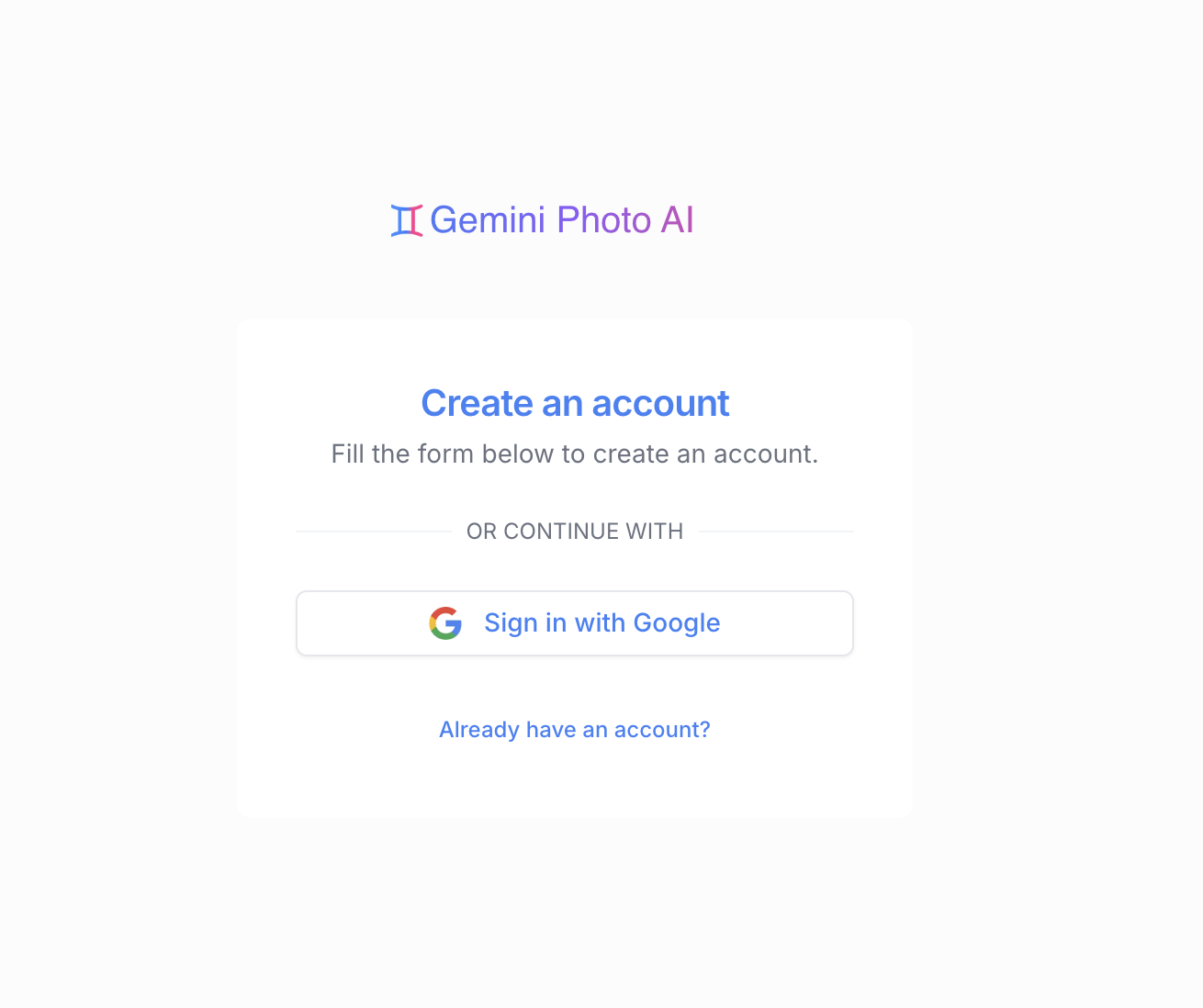
Google Sign-In Interface - Screenshot showing the sign-up page with Google authentication button and the Google
account selection dialog

Signing In

To sign in to your existing account:

  1. Go to the Sign-In page
  2. Click "Sign in with Google"
  3. Select the same Google account you used to sign up

Managing Your Profile

Profile Settings

Access your profile settings from the account menu:

  • Display Name: Customize how your name appears
  • Email Address: View your email (synced from your Google account)
  • Profile Picture: Your Google profile picture is automatically used

Subscription Overview

Photo Make offers subscription plans to unlock premium features:

  • Premium AI Models: Access to advanced image generation and editing
  • Full Prompt Library: Browse and use premium prompts
  • Priority Support: Get help when you need it
  • Early Access: Try new features before general release

Learn more about subscription plans and pricing.

Troubleshooting Account Issues

Can't Sign In?

  • Make sure you're using the same Photo Make account you used to sign up
  • Clear your browser cache and cookies
  • Try signing in from an incognito/private window
  • Check if your Photo Make account is active and accessible
  • Contact support if issues persist

Photo Make Sign-In Issues?

If you're having trouble with Photo Make authentication:

  • Ensure you're allowing pop-ups for the sign-in page
  • Check your browser's privacy settings
  • Try a different browser
  • Make sure JavaScript is enabled

Getting Help

Need assistance with your account?

  • Visit our FAQ section
  • Check the troubleshooting guide
  • Contact our support team

Next Steps

Now that your account is set up:

  • Create your first AI image
  • Explore the prompt gallery
  • Learn about image editing