Getting Started with Photo Make - AI Image Generator & Editor
Learn how to get started with Photo Make, powered by state-of-the-art diffusion and image generation models (Photo Make Studio Engine v2). Generate and edit AI images with natural language prompts.
Getting Started with Photo Make
Photo Make is a powerful AI image generation and editing platform powered by state-of-the-art diffusion and image generation models (Photo Make Studio Engine). Whether you're a designer, marketer, content creator, or hobbyist, Photo Make makes it easy to create stunning images from text prompts or transform existing photos with simple natural language commands.
Photo Make offers both the standard Photo Make Studio Engine (Version 1.0) and the enhanced Photo Make Studio Engine v2 (Version 2.0) with improved quality and advanced features like resolution control.
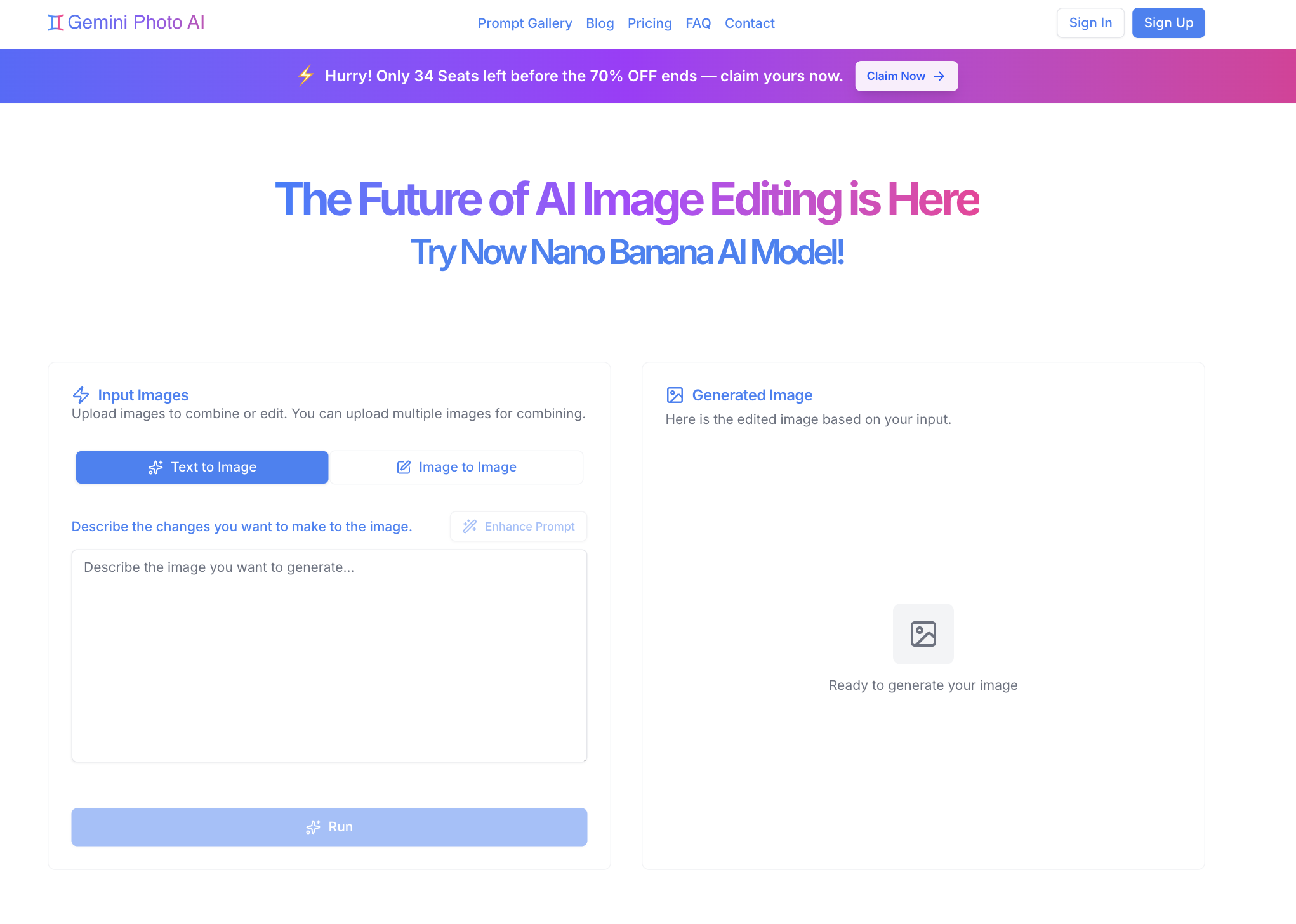
What Can You Do with Photo Make?
- Generate AI Images from Scratch: Create entirely new images by describing what you want in plain English
- Edit Existing Photos: Enhance, retouch, or transform your photos using text prompts
- Detect AI-Generated Images: Verify image authenticity with our AI Image Detector tool
- Access Premium Prompts: Browse a curated gallery of free and premium prompts for inspiration
- Enhance Your Prompts: Use the built-in AI prompt enhancer to optimize your descriptions
- Manage Your Creations: Save and organize all your generated images in your personal gallery
Quick Start Guide
Step 1: Sign Up or Sign In
- Visit the Photo Make Homepage
- Click "Sign Up" to create a new account or Sign In if you already have one
- Complete the email verification process
- You're ready to start creating!
Step 2: Choose Your Mode
Photo Make offers two main modes:
- Text-to-Image: Generate new images from text descriptions
- Image Editing: Transform existing photos with AI-powered edits
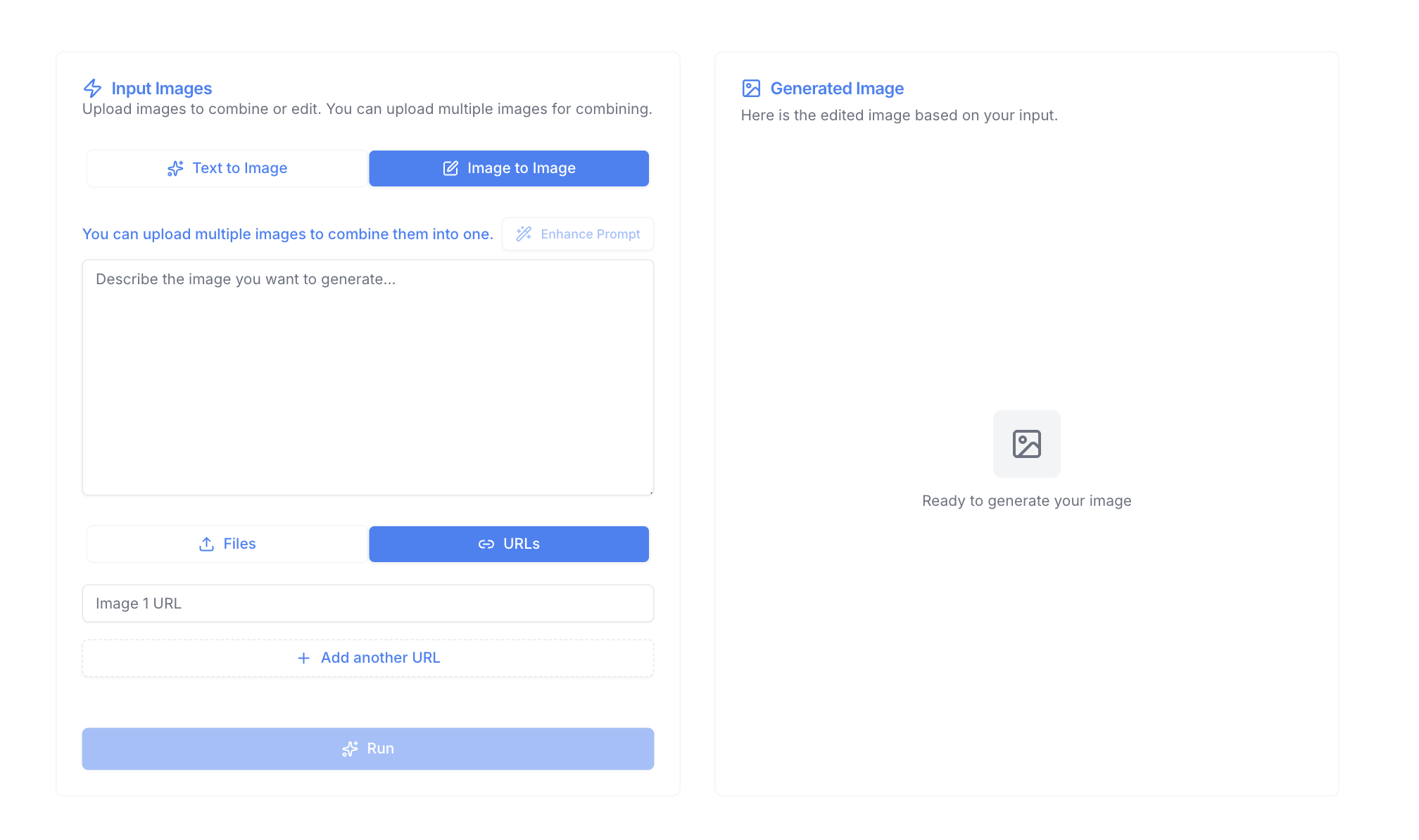
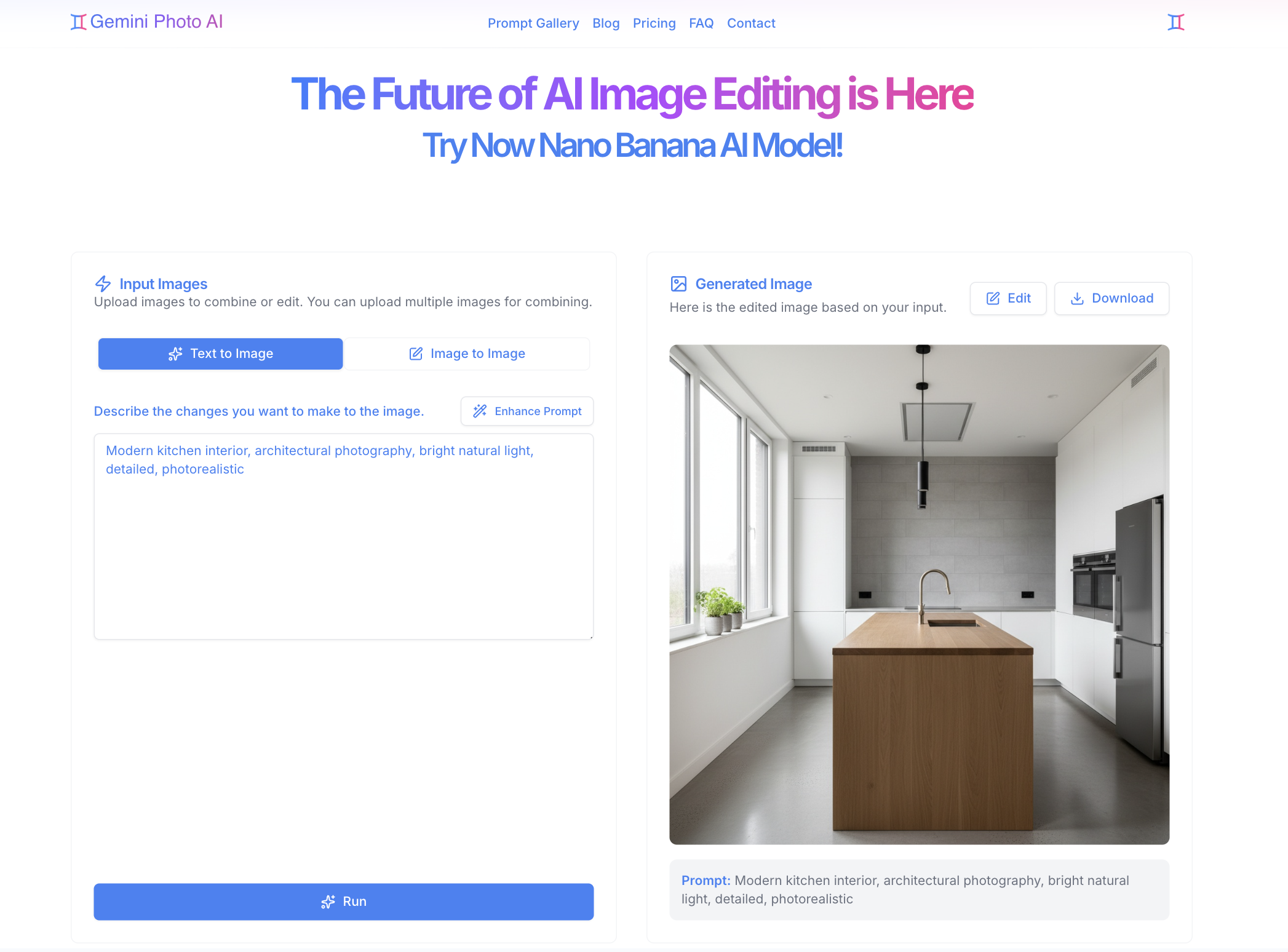
Step 3: Create Your First Image
- Select "Text-to-Image" mode
- Enter a descriptive prompt (e.g., "A serene mountain landscape at sunset, photorealistic")
- Click "Generate" and wait for your AI image to be created
- Download or save your creation
Why Choose Photo Make?
- Powered by Photo Make Studio Engine: Leveraging state-of-the-art diffusion and image generation technology with both standard and Pro versions
- Studio Engine v2 Available: Enhanced model version with improved quality and resolution controls
- Natural Language Processing: No complex commands needed just describe what you want
- Fast Generation: Get results in seconds, not minutes
- High-Quality Output: Professional-grade images suitable for any use case
- Flexible Settings: Choose aspect ratios, resolutions, and output formats to match your needs
- User-Friendly Interface: Intuitive design that makes AI image creation accessible to everyone
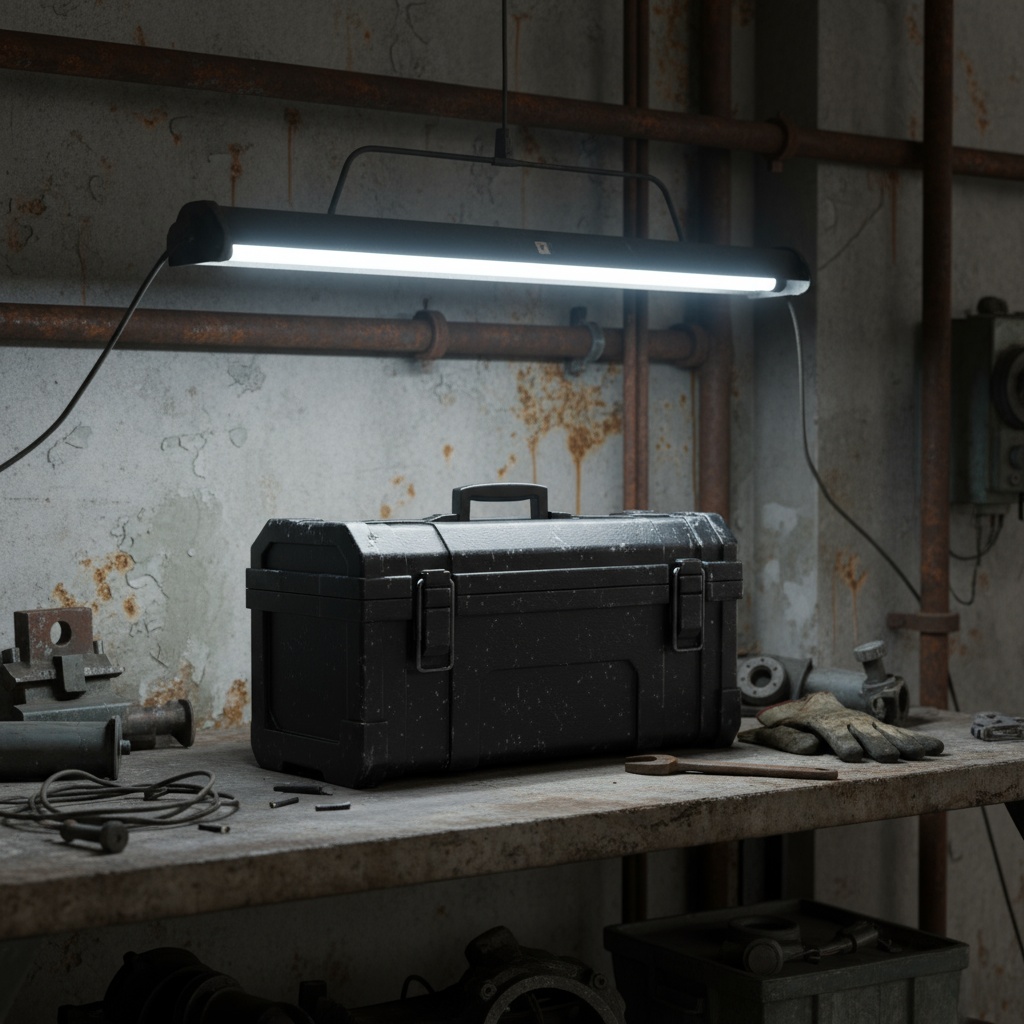
Next Steps
Now that you're familiar with the basics, explore these resources:
- Account Setup Guide - Learn how to manage your account and settings
- Creating Your First AI Image - Detailed step-by-step tutorial
- Understanding Modes - Deep dive into text-to-image vs image editing
- Pricing & Plans - View subscription options and features
Ready to start creating? Sign up now and unleash your creativity with Photo Make!